 DSH Launcher
A tiny macOS menu bar utility for a local dev server — start it, open it, restart it, stop it, without touching a terminal. Native AppKit, one Swift file, no dependencies.
DSH Launcher puts a local development server in the macOS menu bar: start it, open it in your browser, restart it after a pull, or stop it — all one click, no terminal. It has no Dock icon, so it stays out of the way.
It was written for DeepSeek Harness, but the command, port, project folder and browser are all configurable, so it works for any long-running local server.
Now in the Plugin Market
DSH Launcher is now available in the DeepSeek Harness Plugin Market — open Settings →
Plugin Market, search for dsh-launcher, and install it from there. The listing ships
both halves: the menu bar app and the host plugin it reads, which writes the running
server’s port, PID and tokenized URL to ~/.config/dsh-launcher/runtime.json and removes
it on shutdown.
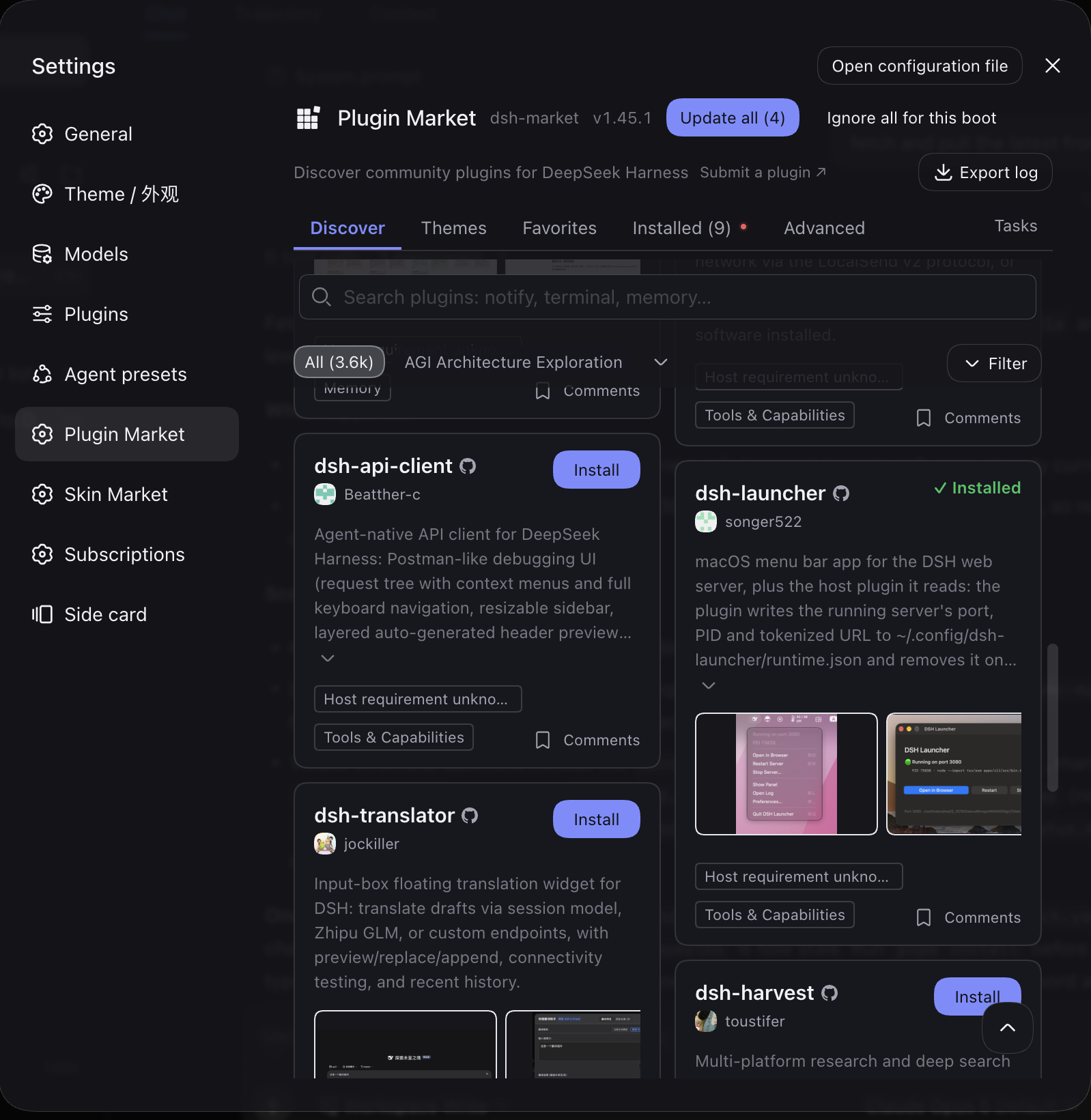
Listed under Discover, installed in one click.
Why I built it
Every time I wanted to use DeepSeek Harness, running it from source meant running it from a terminal:
cd ~/Workspace/deepseek-harness
pnpm dsh web
The command is small. The ceremony around it wasn’t. The terminal tab had to stay open for the whole session. Pulling new changes meant going back to it, killing the server, starting it again. The URL carried a per-process token that had to be copied out of the logs. And when the session ended, the server had to be stopped by hand or it kept squatting on the port.
All the actual work happens in a browser tab. The terminal was never the point of the tool — it was just the tollbooth in front of it. So I gave that ceremony a menu bar icon instead.
The menu bar
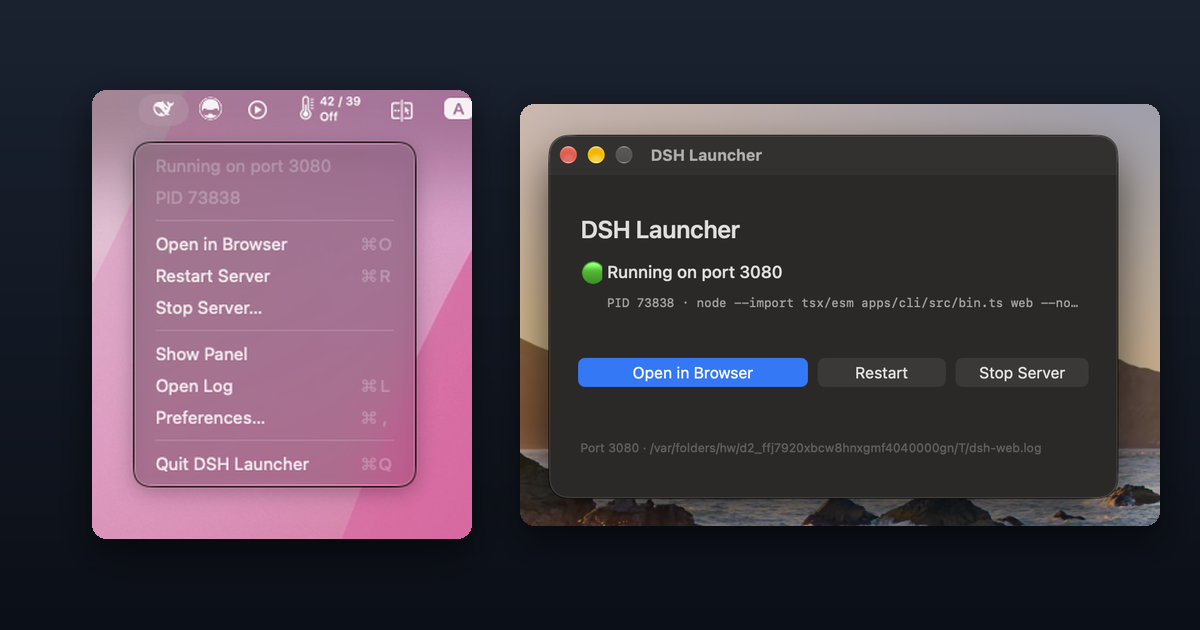
The status icon is the DeepSeek whale, drawn as a template image so macOS tints it for light and dark menu bars. It shows the server’s state at a glance — solid when running, dimmed when stopped — and everything is one click away: open in browser, restart, stop, show the panel, open the log.
State is polled every three seconds, so the icon stays correct even when you start or stop the server from a terminal instead.
The panel
Show Panel opens a small window with the same actions, plus the PID and the command that’s actually running. Closing it doesn’t quit the app — it stays in the menu bar. Zoom and fullscreen are deliberately greyed out: it’s a fixed-size panel, and stretching it full-screen would only add empty space.
The server is started detached, so quitting the launcher never stops it. Stopping is always an explicit, confirmed action — the server may be hosting live sessions.
Getting this right from a GUI app turned up a handful of sharp edges the terminal had been
quietly papering over — a GUI app inherits no shell PATH, the launch token has to survive
into the opened tab, and stopping must target only the process listening on the port. Those
are written up in the repo’s README, along with
build and configuration instructions.